ReadThisAloud reads PDF, Word, text, pasted content, and text contained in standalone images aloud while keeping the spoken material connected to a visible read-along view. Scanned PDF pages and JPG, JPEG, PNG, BMP, TIF, and TIFF images can be recognized with local Windows OCR before entering the same Reader workflow. This help guide explains every user-facing control in the current Reader and the complete workflow from opening the program through closing it.
Start ReadThisAloud. The status bar should report that the Reader is ready, or tell you if speech setup still needs administrator attention.
Choose Open Document, Webpage, Open Image, Paste Text, or drag supported content directly onto the Reader. Scanned PDF pages and standalone images can be recognized with local Windows OCR.
If ReadThisAloud finds a saved position for that document, choose whether to resume from where you previously stopped.
Choose the section you want, or use Read Current Page or Read Entire Document.
Use Pause, Resume, Stop, the current-segment timeline, or the entire-document progress slider whenever you need to move around.
Use Find and Bookmarks to return to important information without starting over.
Use Settings to choose the narration voice, tracking style, tracking color, read-along brightness, text size, line spacing, and optional Accessibility Mode.
When finished, use Export Narration to MP3 if you want an audio copy, or simply close ReadThisAloud. Your reading position is saved when appropriate.
Starting and Closing ReadThisAloud
Starting the program
Launch ReadThisAloud.exe from its installed shortcut or application folder. The program opens centered on the Windows working area and automatically limits its size to the available desktop area so the controls remain accessible.
When no content is loaded, the main status line displays a ready message and the read-along panel displays the instruction to open, paste, or drag a document or image.
Closing the program
Use the standard Windows X in the upper-right corner. When ReadThisAloud closes, it saves the current reading position when one is available, stops active timers, cancels background speech work, and closes audio playback cleanly.
Good to know: You do not need a separate “Save session” command. Reading-position data and user preferences are stored automatically by the Reader.
Opening Content
Open Document
Select Open Document or press Ctrl+O.
Choose a supported PDF, Word DOCX, PowerPoint PPTX, Excel XLSX, or TXT file.
For PDFs, ReadThisAloud first checks every page for normal extractable text. If scanned/image-only pages are detected, the Reader offers local Windows OCR for the pages that need recognition.
ReadThisAloud extracts readable text, divides it into narration sections, displays document information, and begins preparing initial narration in the background.
Webpage
Select Webpage.
Enter the complete address of a public webpage, including https://.
ReadThisAloud downloads the HTML, removes common navigation and interface clutter, and extracts readable headings, paragraphs, lists, quotations, and supported table rows.
The page title appears beside Hide Sections, and the extracted content becomes normal Document Sections for narration, tracking, Find, bookmarks, playback, and MP3 export.
Webpage limitations: Internet access is required to load webpages. Login-required, subscription-only, blocked, script-only, non-HTML, oversized, or insufficiently readable pages may display an error instead of loading incomplete content.
Open Image
Select Open Image.
Choose one or more JPG, JPEG, PNG, BMP, TIF, or TIFF files. Multi-select is supported.
ReadThisAloud displays an Image Detected confirmation with Run OCR and Cancel before recognizing a standalone image.
Select Run OCR. The visible OCR window reports recognition status and percentage.
When OCR completes, the recognized text is placed into Live Read-Along and becomes normal Reader content.
Drag and drop
Drag a supported document or image from File Explorer and drop it anywhere on the ReadThisAloud main window. A document drop keeps the established behavior and opens the first supported document. If the drop contains only supported images, ReadThisAloud treats all of those images as one OCR document and orders them naturally by filename. For example, Page1.jpg, Page2.jpg, and Page10.jpg are read in numeric filename order.
Do not mix document files and image files in the same drag operation. If ReadThisAloud detects both types together, it asks you to drop one document by itself or drop the image set separately.
Paste Text
Select Paste Text.
Paste or type the text you want to hear.
Select Use Text. If the box is empty, ReadThisAloud asks you to paste some text first.
Content type
What ReadThisAloud does
Page behavior
PDF (.pdf)
Extracts normal text page by page and uses local Windows OCR for scanned/image-only pages when approved.
Read Current Page targets the active PDF page, including OCR-recognized pages.
Word (.docx)
Extracts document paragraphs and converts them into narration sections.
Word page boundaries are not retained; Read Current Page reads the current narration section.
PowerPoint (.pptx)
Extracts readable presentation text and organizes it by slide.
Each slide becomes structured Reader content.
Excel (.xlsx)
Extracts readable workbook content and organizes it by worksheet and row.
Worksheet structure is retained as narration sections rather than printed pages.
Webpage (http/https)
Downloads a public HTML page and extracts meaningful readable content.
The imported page becomes section-based Reader content and retains its source address for web bookmarks.
Text (.txt)
Loads the text and divides longer material into narration sections.
The file is treated as a single page, so Read Current Page may read all loaded TXT sections.
Images (.jpg, .jpeg, .png, .bmp, .tif, .tiff)
Uses local Windows OCR to recognize visible text. Multiple selected or dropped images become one page-aware Reader document.
Each image becomes a Reader page. Multi-frame TIFF files can contribute more than one page.
Pasted text
Creates a temporary “Pasted Text” document.
Treated as a single page.
OCR is integrated into the Reader: Whether text came from a scanned PDF page or a standalone image, recognized text enters the same narration, synchronized tracking, Find, bookmark, page-reading, progress, Reading Mode, and MP3-export workflow.
Scanned PDFs and Local OCR
ReadThisAloud includes optical character recognition (OCR) for PDF pages that do not contain enough normal extractable text. The Reader preserves its existing PDF workflow and uses OCR only for pages that need it. V1.9.4 also includes layout-aware OCR, which uses the detected position of OCR lines and words to reconstruct logical paragraph breaks, headings, lists, and reading blocks before the text enters the Reader.
What happens when you open a PDF
ReadThisAloud analyzes the PDF page by page.
Pages that already contain useful selectable text use the normal fast text-extraction path.
Pages with little or no extractable text are marked as OCR candidates.
ReadThisAloud tells you how many pages need OCR and asks whether you want to continue.
Select Yes to run OCR. A dedicated OCR progress window shows the current page and completion percentage.
When recognition is complete, native text pages and OCR pages are merged back into their original page order and loaded into the Reader.
Mixed PDFs
A PDF can contain both normal text pages and scanned pages. ReadThisAloud does not OCR every page just because one scanned page is present. Normal pages keep their extracted text, while only the pages that need recognition are rendered and sent through local OCR.
Visible OCR feedback
While OCR is active, the OCR window displays the current operation, progress percentage, and the number of pages recognized. Select Cancel OCR if you do not want to continue. Cancellation takes effect safely after the current OCR operation yields control back to the Reader.
Privacy
Local processing: ReadThisAloud uses the OCR engine supplied by Windows. The scanned PDF pages are processed on the local Windows computer and are not uploaded to a separate OCR cloud service by this feature.
OCR language
ReadThisAloud uses the OCR language Windows selects from the current user's installed language profile. If no supported OCR language is installed, the Reader explains that OCR cannot start until an appropriate Windows language/OCR feature is installed.
After OCR
Recognized text enters the same ReadThisAloud document model as ordinary PDF text. That means the existing Reader features continue to work with OCR content: Read Current Page, Read Entire Document, synchronized highlighting, click-to-jump, Find, bookmarks, resume position, the document progress slider, Reading Mode, and MP3 export.
Layout-aware OCR
ReadThisAloud uses layout-aware OCR to do more than collect recognized words. It also examines the position and spacing of OCR lines and words. Larger vertical gaps become paragraph breaks, short standalone lines can remain headings, and list-style lines remain separate logical reading blocks.
The goal is to preserve the logical layout of the source while keeping the text reflowable inside ReadThisAloud. A photographed or scanned page with a title followed by several individual paragraphs should therefore appear as separate Reader sections instead of one or two very large text blocks.
Layout note: Layout-aware OCR preserves logical text structure rather than reproducing the source image pixel-for-pixel. Font faces, exact horizontal positions, graphics, tables, and complex multi-column designs may still be simplified. This keeps recognized text compatible with narration, synchronized highlighting, Find, bookmarks, seeking, Reading Mode, and MP3 export.
OCR accuracy
OCR accuracy depends on the source. Clean, straight, high-resolution printed pages usually produce the best results. Very small print, handwriting, damaged pages, unusual fonts, complex tables, multi-column layouts, skewed scans, or low-resolution images can produce recognition errors or pages with no useful recognized text.
Standalone Images and Photo OCR
ReadThisAloud supports local OCR for standalone pictures that contain printed text. A picture can become a first-class Reader document, and V1.9.4 can reconstruct detected paragraph and heading structure from the OCR geometry before the text is presented in the Reader. You can open the image from a folder or drag it directly onto ReadThisAloud.
Supported image formats
Format
Extensions
Notes
JPEG
.jpg, .jpeg
Common for phone photos, camera images, and scanned pages.
PNG
.png
Well suited to screenshots and clean digital text images.
Bitmap
.bmp
Supported by the local Windows image decoder and OCR path.
TIFF
.tif, .tiff
Single-frame and multi-frame TIFF content is supported; each recognized frame becomes a Reader page.
Open one image
Select Open Image.
Choose the image that contains the text you want to hear.
ReadThisAloud displays Image Detected before starting OCR for the selected image.
Select Run OCR. Select Cancel if you do not want to process the image.
The OCR progress window displays Recognizing text…, current image information, processed page count, recognized page count, and a percentage indicator.
When recognition reaches 100%, ReadThisAloud reports OCR complete — text is ready to read.
The recognized text appears as normal Reader content. Choose Play, Read Current Page, Read Entire Document, or another normal reading command when you are ready.
Drag an image onto the Reader
Drag a supported image from Windows File Explorer and drop it anywhere on the main ReadThisAloud window. The same Image Detected, Run OCR, progress, and completion workflow is used.
Use several images as one document
Select several images at once in Open Image, or drag several supported images together. ReadThisAloud combines them into one logical multi-page document. This is useful for photographs or scans named Page01.jpg, Page02.jpg, Page03.jpg, and so on.
Image files are placed into natural filename order before OCR.
Each image becomes a page in the Reader.
A multi-frame TIFF can create multiple pages from one TIFF file.
The document information area reports the number of source image files, OCR pages, and narration sections.
Bookmarks and resume positions use the complete ordered image set as the identity of the document.
What happens after OCR
Image OCR does not create a separate or limited reading mode. The recognized text is converted into the same narration sections used elsewhere in ReadThisAloud. The following features remain available:
Play, Pause, Resume, Stop, Previous, and Next.
Read Selection, Read Current Page, and Read Entire Document.
Natural-voice narration, speed, and volume controls.
Word, Sentence, Line Pointer, or Tracking Off read-along behavior.
Click-to-jump and interactive document seeking.
Find, bookmarks, resume position, Reading Mode, and Clear / New.
Export Narration to MP3.
Privacy
Local image recognition: The OCR recognition stage uses the OCR engine built into Windows. The selected JPG, PNG, BMP, or TIFF image is not uploaded to a separate OCR service by the OCR feature. After text has been recognized, ReadThisAloud narrates the recognized text with the selected local voice system just as it does for other Reader text.
Getting better OCR results from photographs
Keep the page as straight and level as possible.
Use bright, even lighting and avoid shadows across the text.
Fill the photo with the document while keeping all text in focus.
Avoid glare from glossy paper or screens.
Higher-resolution, high-contrast printed text generally recognizes more accurately.
Windows image orientation information is respected so typical phone-photo rotation can be handled during decoding.
If OCR finds no readable text
ReadThisAloud explains that recognizable text was not found and leaves the image unopened as Reader content. Try a clearer photograph, crop away unnecessary background, improve lighting, straighten the page, or use a higher-resolution copy. Handwriting and highly complex layouts can be less reliable than clean printed text.
Main Screen Guide
HeaderShows ReadThisAloud branding and the Help, Reading Mode, and Settings controls. The wordmark has a subtle repeating sheen, and the RTA emblem at the upper-right opens the ReadThisAloud home page. In Reading Mode, playback controls replace the normal header controls.
Selectable buttonsThe dimensional button treatment adds a soft dark shadow beneath standard selectable buttons while preserving the existing cyan hover glow and pressed-state feedback.
Compact proportional layoutV1.9.8 opens at 1220 x 938 DIPs when the Windows working area can support it. The header and Narration panel use tighter vertical spacing so the approved shorter-height layout still shows the complete Narration controls and information card. The proportional Live Read-Along / Document Sections behavior remains in place when the window is resized.
Document toolbarOpen Document, Open Image, Paste Text, Clear / New, Find, Add Bookmark, Bookmarks, and the current document information field.
Live Read-AlongDisplays the active narration text and the selected visual tracking style. The tracking badge identifies Word highlight, Sentence, Line pointer, or Tracking off.
Document SectionsLists the document in selectable narration sections. A normal single-click moves the Live Read-Along to that section, immediately starts narration from there through the remainder of the document, and keeps Document Sections visible so you can continue following or selecting sections while narration plays. Ctrl-click and Shift-click remain available for building a multi-section Read Selection.
Status barReports what ReadThisAloud is doing: loading, preparing, reading, buffering, seeking, paused, stopped, exporting, or ready.
Header branding and website link
The ReadThisAloud wordmark in the upper-left includes a subtle animated sheen. The sheen is decorative only and is constrained slightly inside the visible teal/blue outer outline of the logo so the moving light remains within the logo artwork and does not sweep into the transparent header background.
The RTA emblem at the upper-right has a down-left shadow and functions as a website link. Select the emblem to open ReadThisAloud.com in your default browser. Internet access is required to load the website.
Document information
After content opens, the toolbar displays the document or image-set name, available page count when applicable, OCR information when used, and the number of narration sections created from the content.
Show / Hide Sections
Select Hide Sections to collapse the section list and expand the read-along area. Select Show Sections to restore the list. ReadThisAloud automatically hides sections while narration is active and restores the prior layout when narration stops.
Starting Narration
Play
Play narrates the currently selected section. If you previously used the entire-document progress control to choose a new position, Play continues from that selected position through the remainder of the document.
Select a Document Section and Read
A normal single-click on an entry in Document Sections means take me here and read from here. ReadThisAloud stops the current narration when necessary, places the selected section in Live Read-Along, updates document progress, and begins narration at the start of that section. Document Sections stays visible during this section-click narration workflow, and the active section remains selected/scrolls into view as narration progresses through the remaining sections.
Programmatic section changes made by ReadThisAloud itself do not trigger this behavior, which prevents narration from restarting when the Reader advances to another section internally.
Read Selection
To build a multi-section selection without immediately starting narration, use Ctrl-click to choose separate sections or Shift-click to select a range, then choose Read Selection.
Read Current Page
For PDF content, reads all narration sections belonging to the active PDF page. For standalone image OCR, it reads all recognized narration sections belonging to the active image page. For content without retained page boundaries, it uses the current narration section or the document's single-page behavior described above.
Read Entire Document
Reads every narration section in sequence. ReadThisAloud progressively prepares upcoming audio while the current material is playing. When the entire-document reading completes naturally, the saved resume point for that document is cleared because you have reached the end.
ReadThisAloud product-name pronunciation
When the joined product name ReadThisAloud appears in a document, pasted text, scanned PDF OCR, or image OCR, the narration engine speaks it as “Read This Aloud.” This pronunciation adjustment is applied only to speech; the visible source text is not rewritten.
The narration layer also recognizes the common OCR substitution ReadThisAIoud, where a capital I is mistaken for the lowercase l in “Aloud,” and still speaks the product name correctly. Synchronized tracking remains mapped to the visible source characters.
ReadThisAloud allows one active narration operation at a time. A normal single-click in Document Sections now switches cleanly from the current narration to the newly selected section. Other reading commands continue to use the normal one-operation-at-a-time safeguards.
Playback Controls
Previous and Next
Prev and Next move the section selection programmatically without triggering the new single-click auto-read behavior. Use Play when you want to narrate the newly selected section, or directly single-click a Document Sections entry to switch narration and continue from there.
Pause
Temporarily pauses the current audio. The visible tracking stops at the current position, and ReadThisAloud saves your reading position.
Resume
Continues paused narration from the same point and restarts the synchronized tracking display.
Stop
Stops narration, saves the current reading position, clears active tracking, and returns the Reader to a ready state.
Speaking speed
Move the Speaking speed slider from approximately 0.75x to 1.35x. The chosen rate is saved automatically and used for future narration.
Playback volume
Move the Playback volume slider from 0% to 100%. The volume setting is applied immediately and saved automatically.
Timeline and Entire-Document Progress
Current narration segment timeline
The first timeline represents only the audio segment currently playing. It shows elapsed and total time for that segment. Click or drag the thumb to another point in the segment; ReadThisAloud seeks the audio and updates synchronized tracking.
You can also use Left Arrow and Right Arrow during seekable playback to move backward or forward by 10 seconds.
Entire document progress
The Entire document progress slider represents your location across all loaded narration sections. The percentage and location text update as you read.
Drag the progress thumb or click the bar to preview another location.
While you drag, ReadThisAloud shows the target section and page when page information is available.
If narration is stopped, releasing the thumb sets the new location. Press Play to continue from there through the remainder of the document.
If narration is already playing, releasing the thumb stops the current audio, jumps to the selected document position, and continues narration from the new location.
The entire-document slider is disabled until readable content has been loaded.
Live Read-Along, Tracking, and Click-to-Jump
As ReadThisAloud narrates, timing information keeps the visible text connected to the spoken audio. The available visual tracking modes are:
Mode
What you see
Word-by-word highlight
The individual spoken word is highlighted.
Line pointer
A pointer appears at the left edge of the visual line being spoken without coloring the text.
None
Narration and synchronization remain active with no visible tracking marker.
Click-to-jump
During active narration, click a word in the Live Read-Along panel. If that word is in the current synthesized segment, ReadThisAloud seeks directly to its audio position and continues. If the word requires a new narration segment, the Reader stops the current operation and restarts from the selected word.
Click-to-jump is designed for navigation while narration is active. It lets you move directly to visible text without scrubbing through audio blindly.
Find in Document
Select Find or press Ctrl+F.
Type a word or phrase. The dialog automatically begins searching when two or more characters are entered; you can also press Enter or select Find.
Select a result. Each result shows its location and a surrounding preview.
Choose Go To to move the Reader to that result without starting narration, or Go To & Read to move there and begin reading from that point.
Double-clicking a result performs the Go To action without automatically starting narration.
Search is case-insensitive and returns up to the first 250 matches.
Bookmarks
Add Bookmark
Select Add Bookmark or press Ctrl+B. ReadThisAloud records the current narration location, document identity, and a short text preview.
Review Bookmarks
Select Bookmarks or press Ctrl+Shift+B.
Leave Show current document only selected to see only bookmarks for the open document, or clear it to review bookmarks from other documents.
Select a bookmark and choose Go To & Read, or double-click it.
Choose Delete to remove an unwanted bookmark after confirming the deletion.
If a bookmark belongs to another document, ReadThisAloud attempts to reopen that original file before starting at the saved position. If the file has been moved, renamed, or deleted and cannot be found, the bookmark cannot reopen it automatically.
Resume Where You Left Off
ReadThisAloud remembers reading positions for documents you have used. When you reopen a document with a saved position, the Reader can ask whether you want to resume from that point.
Reading positions are saved during normal actions such as pausing, stopping, closing the program, clearing the current session, and moving to a new document position.
If you complete an entire-document reading naturally, ReadThisAloud clears that document's resume marker because the document has been finished.
Reading Mode
Reading Mode creates a cleaner workspace for longer sessions. Select Reading Mode or press F11.
While Reading Mode is active, ReadThisAloud hides the document toolbar, narration side panel, status panel, and Document Sections list. The header changes to show essential playback controls: Pause, Resume, Stop, and Exit Reading.
Press F11 again, press Esc, or choose Exit Reading to return to the normal interface.
Reader Settings — Complete Guide
Select Settings in the upper-right of the Reader or press Ctrl+,. The current Settings window manages narration and voice behavior, pronunciation corrections, Read-Along appearance, the tracking/highlight color picker, account and license access, support links, and diagnostic information.
Settings are user-specific: Voice, narration style, speed, volume, tracking, Read-Along appearance, and the selected tracking/highlight color are saved for the current Windows user when you select Save.
Scrolling the Settings window: Use the vertical scrollbar at the right side of Settings to move through Narration, Pronunciation Dictionary, Read-Along & Reading Appearance, Account & License, Support & About, and Advanced Diagnostics. Cancel and Save remain at the bottom of the window.
Interactive screenshots: Hover over a Settings control to see a Help tip, then click it to jump directly to that detailed Help topic. Keyboard users can press Tab to move through the hotspots and Enter to open a topic.
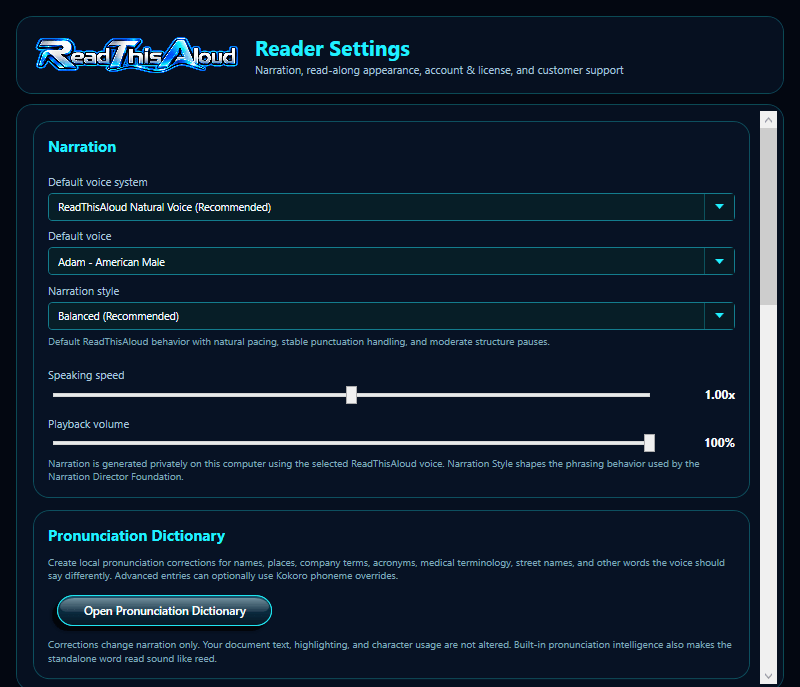
Settings window — Narration and Pronunciation
Current Settings upper portion: voice system, default voice, narration style, speaking speed, playback volume, and the Pronunciation Dictionary.
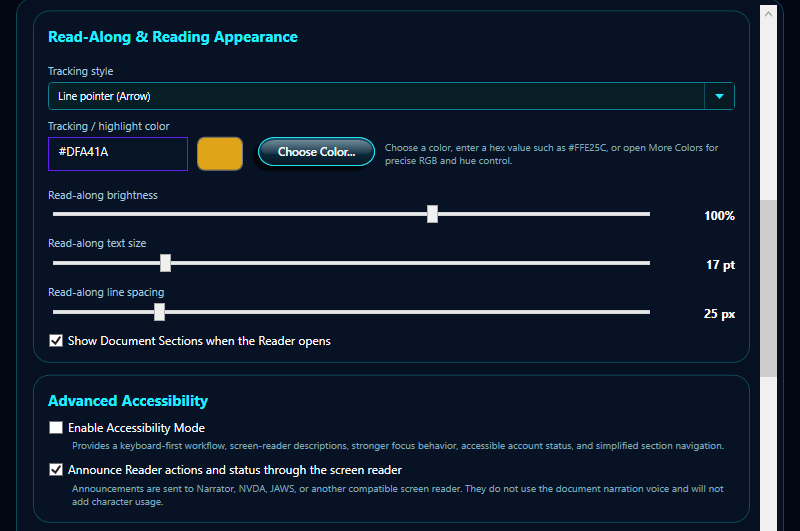
Settings window — Read-Along appearance and Advanced Accessibility
Current Settings middle portion: tracking style and color, Choose Color, brightness, text size, line spacing, the Document Sections preference, and Advanced Accessibility.
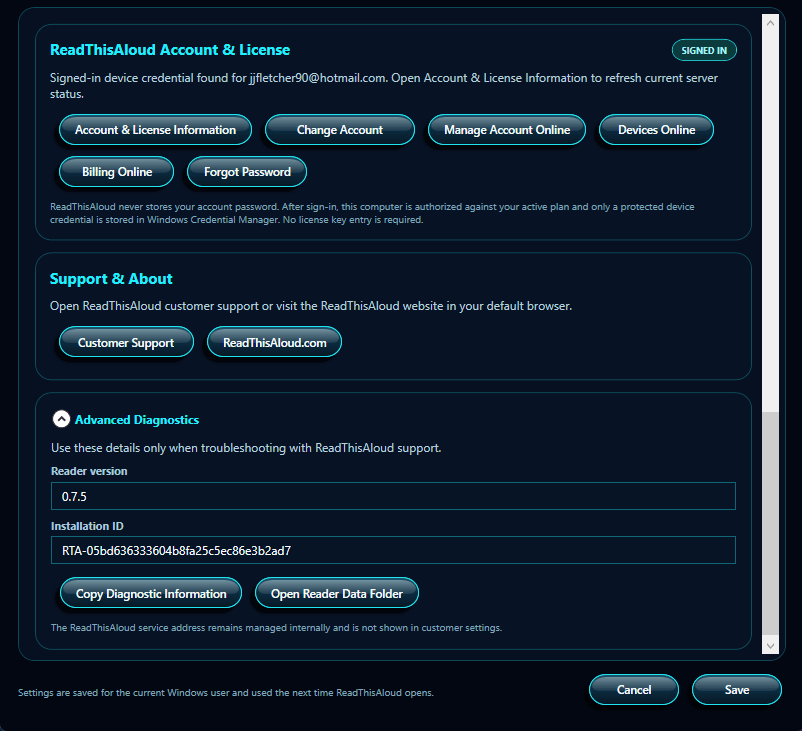
Settings window — Account, Support, Diagnostics, Cancel, and Save
Current Settings lower portion: Account & License, Support & About, Advanced Diagnostics, Cancel, and Save.
Screenshot note: These images show the current V0.7.15 Settings layout, including Advanced Accessibility. Your selected values, signed-in email address, installation ID, and account-status badge will be different.
Narration
The Narration section selects the voice system, voice, narration style, speaking speed, and playback volume used by the Reader.
Default voice system
ReadThisAloud Natural Voice (Recommended) is the primary narration system. If another supported narration engine is available in the build, selecting it updates the voice list for that engine.
Default voice
Choose the voice you want ReadThisAloud to use by default. Adam - American Male is shown in the example Settings image. The selected voice becomes the default for future Reader sessions after you save the Settings window.
Narration style
Narration style changes how the Narration Director shapes pacing around paragraphs, headings, bullets, quotations, and other document structure. The available styles are:
Style
Behavior
Balanced (Recommended)
Natural pacing, stable punctuation handling, and moderate structure pauses.
Smooth & Relaxed
Softer pacing with slightly longer pauses between headings, lists, and sections for a calmer listening flow.
Expressive Presentation
Adds more phrasing contrast so headings, bullets, and quotations sound more intentionally presented.
Crisp & Efficient
Keeps narration tighter with shorter structural pauses and a slightly brisker presentation for efficient review.
Speaking speed
Move the slider to choose the default narration rate. The value shown at the right updates as you adjust the slider.
Playback volume
Set ReadThisAloud playback volume from 0% to 100%. This is the Reader's playback level; Windows output-device and system volume settings still apply.
Pronunciation Dictionary
Select Open Pronunciation Dictionary to create local pronunciation corrections for names, places, company terms, acronyms, medical terminology, street names, and other words that the voice should say differently.
Pronunciation corrections affect narration only. They do not rewrite the source document, alter highlighting, or change character usage. This makes it possible to improve how specialized terms are spoken while preserving the text exactly as it appears in the document.
Read-Along & Reading Appearance
These controls change how narration is visually followed and how the Live Read-Along panel is displayed. They do not rewrite the original document text.
Tracking style
Choose Line pointer (Arrow), Word-by-word highlight, or Tracking off. Line pointer follows the current visual line, Word-by-word highlights the spoken word, and Tracking off keeps narration active without a visible tracking marker.
Tracking / highlight color
You can still type a standard six-digit RGB hexadecimal color directly into the Settings field, such as #FFE25C or #20F0FF. The color preview beside the field updates so you can confirm the selection. For visual selection instead of manual entry, select Choose Color... to open the ReadThisAloud Color Picker.
ReadThisAloud Compact + Advanced Color Picker
Select Choose Color... to open the ReadThisAloud color picker. It opens in a compact view first so most users can choose a color quickly without working through detailed color controls.
Quick Colors: Choose from 32 common swatches, including neutral tones, reds, oranges, yellows, greens, cyans, blues, purples, pinks, and ReadThisAloud accent colors.
Current / New: The Current preview shows the color that was active when the picker opened. The New preview shows the color you are preparing to use.
Hex: Enter an exact six-digit RGB value in #RRGGBB format. The Hex field remains available in both compact and advanced views.
More Colors >>: Select this when you need finer control. The window expands to display the Advanced Color panel. Select Fewer Colors << to collapse it again.
Advanced Color field: Drag inside the large color field to change saturation and brightness for the selected hue.
Hue strip: Drag along the vertical rainbow strip to select the base hue.
RGB: Enter exact Red, Green, and Blue channel values when you need numerical precision.
Hue / Saturation / Brightness: The advanced panel displays live H, S, and B values so you can see the resulting color characteristics while adjusting the picker.
Color Picker control
What it does
Use Current Color
Restores the New selection to the color that was active when the picker opened.
OK
Returns the selected color to the Settings window, updates the Hex field, and refreshes the color preview.
Cancel
Closes the picker without changing the Settings color.
Important: Selecting OK in the Color Picker returns the new color to Settings, but the Reader preference is not permanently stored until you select Save at the bottom of the Settings window.
Tip: If you already know the exact brand or accessibility color you want, type the Hex value directly. If you want to explore visually, start with Quick Colors and open More Colors >> only when you need precise adjustment.
Read-along brightness
Adjust the brightness of the Live Read-Along presentation. The current value is displayed as a percentage.
Read-along text size
Adjust the displayed Reader text size. This changes only the on-screen reading presentation and does not modify the source document.
Read-along line spacing
Adjust vertical line spacing to make the Live Read-Along more compact or more open. ReadThisAloud maintains enough line height for the selected text size.
Show Document Sections when the Reader opens
Leave this selected when you want the Document Sections list visible when the Reader opens. Clear it when you prefer the larger Live Read-Along area by default.
Advanced Accessibility
These optional controls provide a keyboard-first workflow and additional information for compatible Windows screen readers.
Enable Accessibility Mode
Uses simplified single-section navigation, keeps Document Sections available for keyboard use, improves focus behavior after content loads, and enables the Accessibility Mode shortcuts described below.
Announce Reader actions and status through the screen reader
When Accessibility Mode is also enabled, Reader status changes are exposed through Windows UI Automation so a compatible screen reader can announce loading, section selection, playback actions, bookmarks, settings changes, completion, and errors. These interface announcements do not use the document-narration voice and do not consume narration characters.
Normal Reader operation: When both accessibility checkboxes are cleared, ReadThisAloud functions normally with its existing mouse, keyboard, multi-section selection, narration, tracking, bookmark, playback, and export behavior. Accessibility Mode is not required to use the Reader.
Compatibility: V0.7.15 is designed to provide useful information to compatible Windows screen readers such as Narrator, NVDA, and JAWS. Results can vary by Windows and screen-reader version. This feature is not a claim of formal WCAG, Section 508, or screen-reader certification.
ReadThisAloud Account & License
This section connects the Windows Reader to your ReadThisAloud.com account and provides direct access to account, device, plan, and billing information. The badge shows SIGNED IN or SIGN IN REQUIRED according to the current device state.
Control
What it does
Account & License Information
Opens the Reader's account-status information and can refresh current server status.
Sign In / Change Account
Signs this Windows Reader into an existing ReadThisAloud.com account or changes the account associated with the device.
Manage Account Online
Opens the ReadThisAloud customer dashboard in your default browser.
Devices Online
Opens the online device-management page.
Billing Online
Opens online billing and plan information.
Forgot Password
Opens the ReadThisAloud password-recovery page.
Credential privacy: ReadThisAloud does not store your account password. After successful sign-in, the computer uses a protected device credential stored in Windows Credential Manager. No manual service credential or license-key entry is required.
Support & About
Select Customer Support to open ReadThisAloud support resources, or select ReadThisAloud.com to open the product website in your default browser.
Advanced Diagnostics
Expand this area when troubleshooting or when ReadThisAloud support asks for diagnostic information. It displays the Reader version and Installation ID and provides Copy Diagnostic Information and Open Reader Data Folder. The ReadThisAloud service address remains managed internally and is not exposed as a customer setting.
Cancel and Save
Control
Behavior
Cancel
Closes Settings without committing changes made during the current Settings session.
Save
Applies and stores the selected Reader preferences for the current Windows user and future ReadThisAloud sessions.
Recommended workflow: Choose the voice and narration style you prefer, set speed and volume, adjust the Read-Along appearance and tracking color, review account status if needed, and select Save.
Export Narration to MP3
ReadThisAloud can create an MP3 audio file from the generated narration so you can listen later with another compatible audio player.
Open the document you want to export.
If narration is currently running, select Stop first.
To export selected material, select two or more Document Sections. If fewer than two sections are selected, the current build exports the entire document.
Select Export Narration to MP3.
Choose the destination and filename. The default name uses the document name followed by _Narration.mp3.
Wait for the export progress to complete. ReadThisAloud confirms when the MP3 file has been saved successfully.
Export requires working speech configuration. The Reader does not allow a new export to begin while narration is already active.
Clear / New Document
Select Clear / New or press Ctrl+N when you are finished with the current content and want a clean reading session.
If a document or narration session is active, ReadThisAloud asks for confirmation. When confirmed, the current reading position is saved, narration/background work is stopped, the active document is removed, the progress controls are reset, and the Reader returns to its startup-ready state.
Bookmarks and Settings are preserved. Clear / New removes the current session; it does not erase your saved bookmarks or user preferences.
Keyboard Shortcuts
Shortcut
Action
F1
Open this Help guide.
Ctrl+O
Open Document.
Ctrl+N
Clear / New Document.
Ctrl+F
Find in Document.
Ctrl+B
Add Bookmark.
Ctrl+Shift+B
Open Bookmarks.
Ctrl+,
Open Settings.
Space
Play, pause, or resume depending on the current playback state.
Left Arrow
Seek backward 10 seconds when the current audio is seekable.
Right Arrow
Seek forward 10 seconds when the current audio is seekable.
F11
Enter or exit Reading Mode.
Esc
Exit Reading Mode if active; otherwise stop narration.
F6
When Accessibility Mode is enabled, move focus among the document toolbar, Document Sections, voice controls, and playback controls.
Enter
When Accessibility Mode is enabled and a Document Section is selected, begin reading from that section.
Ctrl+Alt+A
When Accessibility Mode is enabled, send the loaded title, selected section, and current Reader status to the compatible screen reader.
Accessibility shortcuts: These additional commands are active only while Accessibility Mode is enabled. Existing shortcuts continue to work normally.
What ReadThisAloud Remembers
The current Windows Reader stores user preferences, bookmarks, and reading positions locally so you can return to familiar settings and previously used documents.
Item
Behavior
Reading preferences
Default voice system, voice, speech rate, volume, tracking style, tracking color, panel brightness, font size, line spacing, Document Sections preference, Accessibility Mode, and accessibility-announcement preference are saved.
Reading positions
Saved automatically for recent documents when there is a meaningful position to remember.
Bookmarks
Saved locally and available across Reader sessions. Multi-image OCR bookmarks remember the ordered set of source image paths so the collection can be recognized again when reopened.
Account device credential
After sign-in, a protected ReadThisAloud device credential is stored in Windows Credential Manager. Your account password is not stored by the Reader.
Advanced: local storage location
Reader settings, bookmarks, and reading-position files are stored under the current Windows user's application-data area in the NaturalVoiceReader application-data folder. This legacy folder name is retained by the current build for compatibility with earlier ReadThisAloud versions.
Troubleshooting
ReadThisAloud Natural Voice does not start.
Confirm the selected Natural Voice is available and the Reader has permission to access its local application data. The required voice models are included with the ReadThisAloud installer, so there is no separate first-use model download.
A scanned PDF needs OCR.
Select Yes when ReadThisAloud reports scanned/image-only pages. If Windows reports that no OCR language is available, install an appropriate Windows language/OCR feature and try again.
OCR completes but one or more pages are missing text.
The scan may be too faint, skewed, low-resolution, handwritten, or structurally complex for reliable recognition. Try a clearer scan or a higher-resolution copy. ReadThisAloud reports when an OCR page does not produce enough readable text.
OCR text does not preserve the paragraph layout I expected.
Layout-aware OCR uses spacing and line positions to reconstruct logical paragraphs and headings automatically, but unusually complex tables, overlapping text, decorative layouts, and some multi-column pages can still require a simpler reading order.
I cannot select a JPG, PNG, BMP, or TIFF with Open Document.
Use the separate Open Image button for standalone image OCR, or drag the supported image directly onto ReadThisAloud. Open Document remains dedicated to PDF, DOCX, and TXT files.
An image opens but OCR finds no readable text.
Try a clearer or higher-resolution copy. For photos, straighten the page, improve lighting, reduce glare, and make sure the printed text is in focus. Handwriting, decorative text, very small print, and complicated layouts can reduce recognition accuracy.
My multiple images are in the wrong order.
ReadThisAloud uses natural filename order. Rename the files with a consistent sequence such as Page01, Page02, Page03 before opening or dragging them together.
A selected Natural Voice is unavailable.
Open Settings and choose the recommended ReadThisAloud Natural Voice system, then select another available local voice. If voice resources appear to be missing or damaged, reinstall or update ReadThisAloud using the current installer.
How do I switch to another Document Section while narration is already reading?
Single-click the section you want. ReadThisAloud stops the active narration cleanly, moves that section into Live Read-Along, keeps Document Sections visible, and starts reading from the beginning of the selected section through the remainder of the document. As narration advances, the current section stays selected and is scrolled into view. Use Ctrl-click or Shift-click instead when you are building a multi-section Read Selection.
The highlight is missing or different from what I expect.
Open Settings and check the Read-Along tracking style. If None is selected, narration still works without a visual marker. Also review the tracking color, brightness, text size, and line spacing.
The entire-document progress control is unavailable.
Load readable content first. The document-progress slider is disabled when no document or usable sections are loaded.
A bookmark for another document will not open.
The bookmark keeps the original file location. If that file has been moved, renamed, or deleted, ReadThisAloud cannot reopen it automatically. Open the document manually and create a new bookmark if needed.
Export Narration to MP3 is unavailable or produces an error.
Make sure a document is loaded, narration is stopped, and speech configuration is working. Then try the export again and choose a folder where your Windows account has permission to save files.
There is no sound.
Confirm the ReadThisAloud Playback volume is above 0%, check the Windows system volume and selected output device, and verify that narration is actually in Play or Resume state.
The narration panel shows a vertical scrollbar.
The Reader automatically fits the available Windows working area. On shorter displays, a scrollbar is intentionally provided so every Narration control remains reachable. On a taller display, resizing the window slightly can remove the scrollbar.
Frequently Asked Questions
Does ReadThisAloud require internet access?
Normal narration is generated locally using the voice models installed with ReadThisAloud. Internet access is still needed for ReadThisAloud.com account and license verification, online account or billing pages, support links, secure software downloads, and updates.
Are scanned PDF pages or standalone images uploaded for OCR?
No. The OCR recognition stage uses the OCR engine built into Windows and processes scanned PDF pages or selected image files locally on the computer. The recognized text is then narrated by the selected local ReadThisAloud voice system.
Can I take a picture of a printed page and have ReadThisAloud read it?
Yes. Save or copy the photo to the Windows computer as a supported JPG, JPEG, PNG, BMP, TIF, or TIFF file, then use Open Image or drag the picture onto ReadThisAloud. Local OCR recognizes the visible printed text and prepares it for the normal Reader.
Can I open several scanned image pages together?
Yes. Select several supported images in Open Image or drag them together. ReadThisAloud orders them naturally by filename and treats them as one multi-page OCR document.
Can I read only part of a document?
Yes. Select one or more Document Sections and choose Read Selection, use Find and Go To & Read, use a bookmark, click a spoken word during narration, or move the entire-document progress control to a new location.
Can I change the highlighting?
Yes. Settings provides Word-by-word highlight, Line pointer, and Tracking off modes, plus a custom tracking/highlight color.
Can I make the text easier to read?
Yes. Adjust read-along panel brightness, font size, line spacing, tracking color, and Reading Mode.
Does Clear / New delete bookmarks?
No. It clears the current reading session while keeping bookmarks and Settings.
Can I save the narration?
Yes. Use Export Narration to MP3 after stopping active narration.
What is Accessibility Mode?
Accessibility Mode is an optional V0.7.15 setting that provides simplified single-section navigation, predictable keyboard focus, accessible control names, F6 movement between major Reader areas, and Enter-to-read behavior in Document Sections.
What happens when Accessibility Mode is turned off?
The Reader functions normally. Existing narration, tracking, playback, bookmark, export, mouse, keyboard, and multi-section selection behavior remains available.
Do screen-reader announcements use narration characters?
No. Reader-status announcements are local Windows UI Automation events intended for a compatible screen reader. They do not use the selected document-narration voice and do not consume narration characters.
Can ReadThisAloud narrate webpages, PowerPoint, and Excel?
Yes. The current Reader can load readable public webpages, supported PPTX presentations, and supported XLSX workbooks. Webpages require internet access to import. Complex visual layouts, charts, macros, protected files, and script-only webpages may not convert completely into narration text.
Additional Help and Support
If this guide does not resolve the issue, visit the ReadThisAloud support resources:
When requesting help, include the action you were performing, the exact message shown by ReadThisAloud, the document type involved, and a screenshot when possible. Do not send passwords, device credentials, or other private account information.
Help shortcut: Select the ? Help control in the ReadThisAloud header or press F1 at any time.