See ReadThisAloud in action

From document to natural narration in one connected workflow.

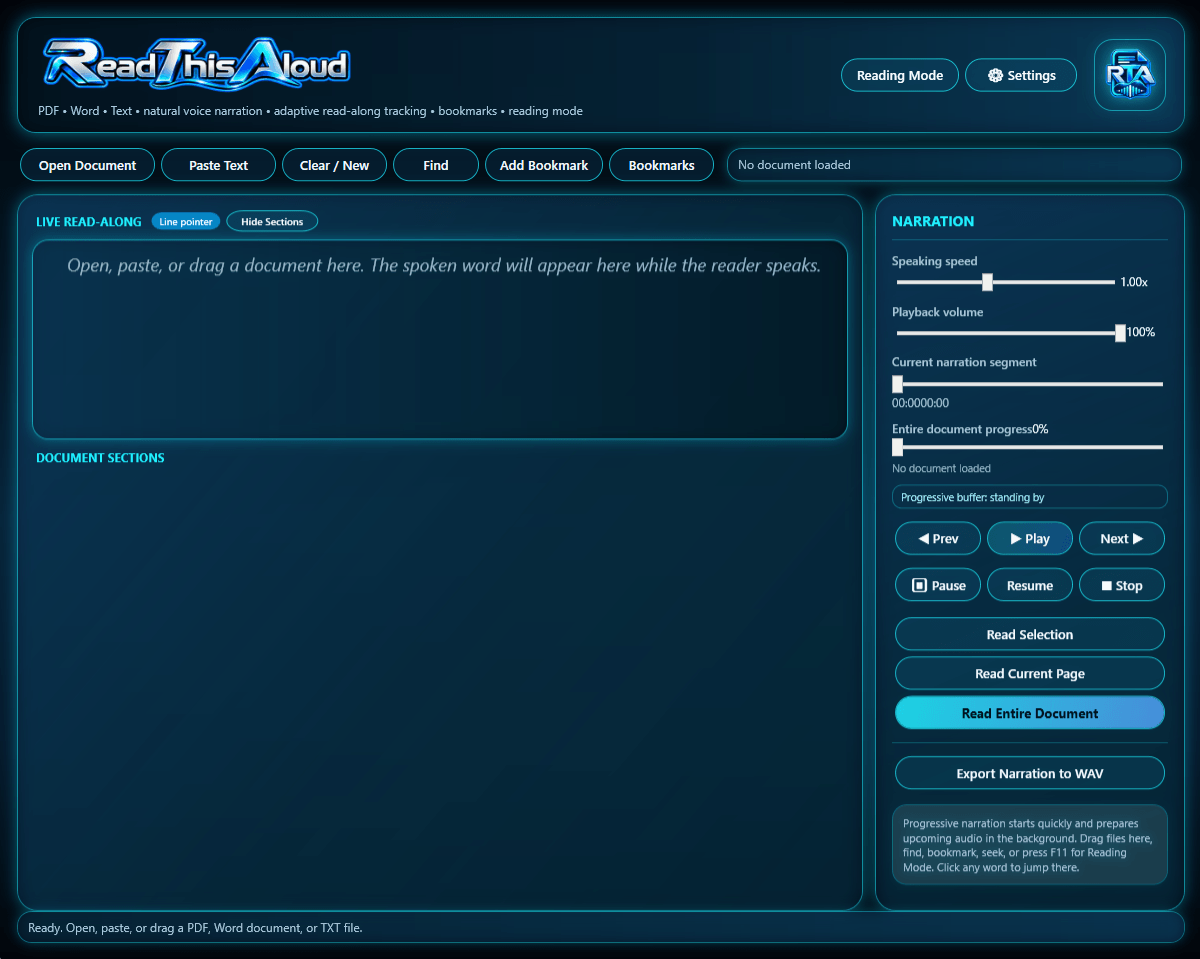
This guided tour shows how ReadThisAloud moves from opening a document to listening, following the spoken word, navigating instantly, controlling playback, and exporting narration.

Nothing on this page is meant to imitate a different product. The walkthrough is built around the actual ReadThisAloud Windows interface and the workflow the application is designed to support.

ReadThisAloud Windows application interface
Interactive walkthrough

Follow the Reader in the same order you would actually use it.

Select any chapter below. The tour explains what is happening in that part of the reading session without turning the page into another feature list.

ReadThisAloud application used for the guided walkthrough
STEP 01 · OPEN CONTENT

Bring your document into the Reader.

Open a PDF, Word document, or TXT file, or paste text directly into ReadThisAloud. The session begins with the content you already use rather than requiring a new document format.

What to notice: The Open Document and Paste Text controls keep the starting workflow simple and visible.
1 of 8
Three moments that matter

The value becomes clear when the Reader is moving.

These are the interactions a static list cannot explain as well as a demonstration.

01

Watch the spoken word stay synchronized.

Narration is designed to remain visually connected to the document so the listener can keep following the exact place being spoken rather than listening blindly.

Live read-alongWord timingVisual focus
02

Jump directly to the text you want.

Instead of restarting or scrubbing through audio, the Reader is designed to move narration to the selected text and let bookmarks and sections preserve useful locations.

Click-to-jumpBookmarksSections
03
1x

Control the session without losing context.

Speaking speed, volume, timeline, previous, next, pause, resume, and stop remain available while the document stays visible and connected to narration.

SpeedVolumeTimelineTransport
Narrated product video

Watch ReadThisAloud work through a real reading session.

This recorded demonstration uses the actual ReadThisAloud Windows application. Watch the Reader open content, begin narration, keep the spoken word synchronized with the text, move through the document, control playback, and complete the session.

REAL PRODUCT DEMONSTRATION ReadThisAloud — Guided Demo

Use the player controls to pause, replay, change volume, or move to any point in the demonstration.

01Open document content
02Begin natural narration
03Follow synchronized highlighting
04Navigate and move through text
05Use playback controls
06See the complete Reader workflow
What the full session feels like

Open it. Hear it. Follow it. Move through it.

ReadThisAloud is most useful when the individual controls disappear into one continuous reading workflow. You open the material, begin listening, stay visually connected, move when you need to, and keep control without breaking the session.

01Open
02Listen
03Follow
04Navigate
05Control
06Export
What this demo is — and is not

A product demonstration should prove the experience, not oversell it.

Actual Reader interface

The screenshots and future video are based on the ReadThisAloud Windows application.

Actual product workflow

The sequence follows the same order customers use when opening, listening to, and navigating documents.

Controlled public demonstration

The public site demonstrates the product without exposing unrestricted speech-service usage or backend credentials.

Ready for the Reader?

See the workflow. Choose the plan. Start reading differently.

Review the complete feature set or compare the available plans when you are ready to move from demonstration to use.